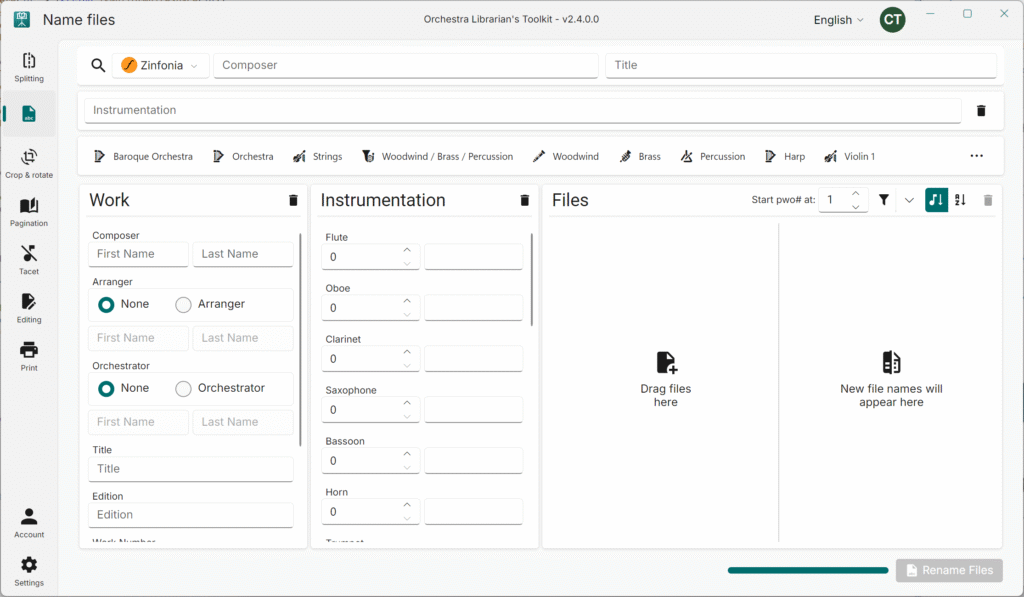
Welcome to Orchestra Librarian’s Toolkit (OLTK). Please follow the steps below to get started. If you have any questions along the way, please do reach out to support at support@oltoolkit.com
- If you don’t have a personal Microsoft account, you can create one here. (Installing apps from the Microsoft Store now requires a personal account – corporate Microsoft accounts use different technology and will not work.)
- Open the Microsoft Store app on your computer.
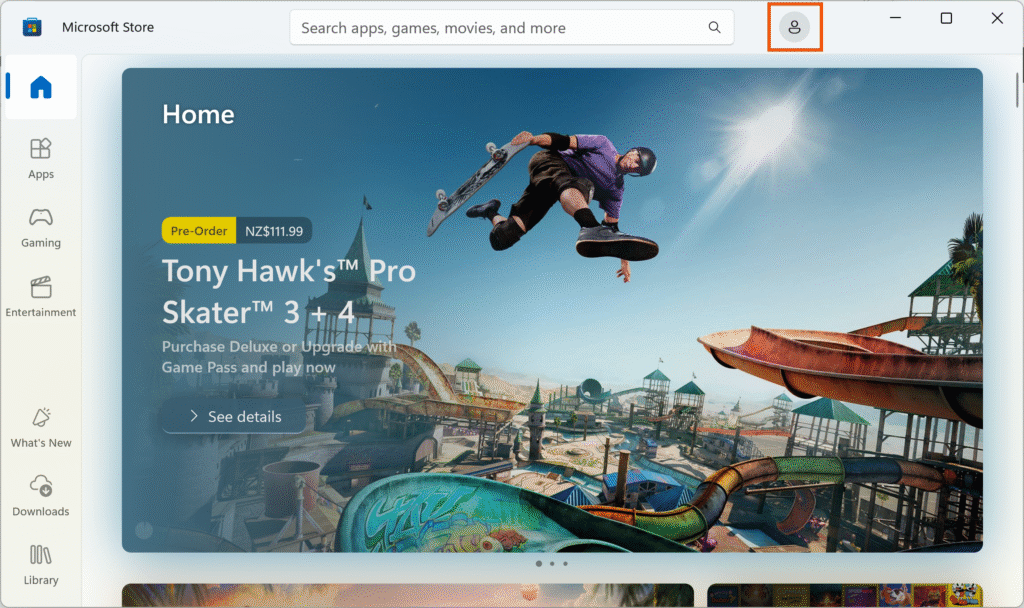
- Click the profile icon. If you are already signed in using your personal Microsoft Account, skip to searching for OLTK in the store app.
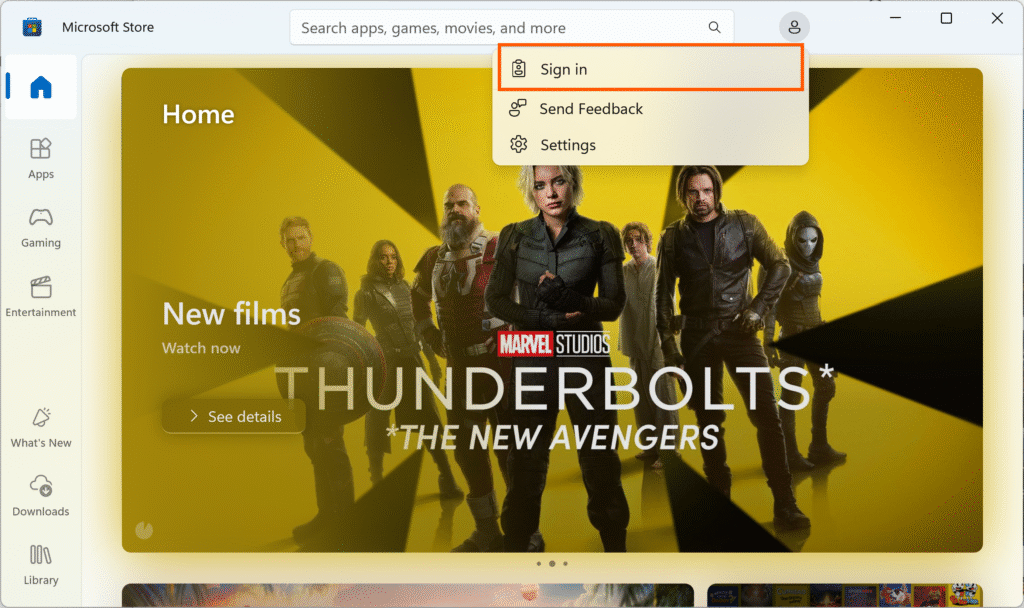
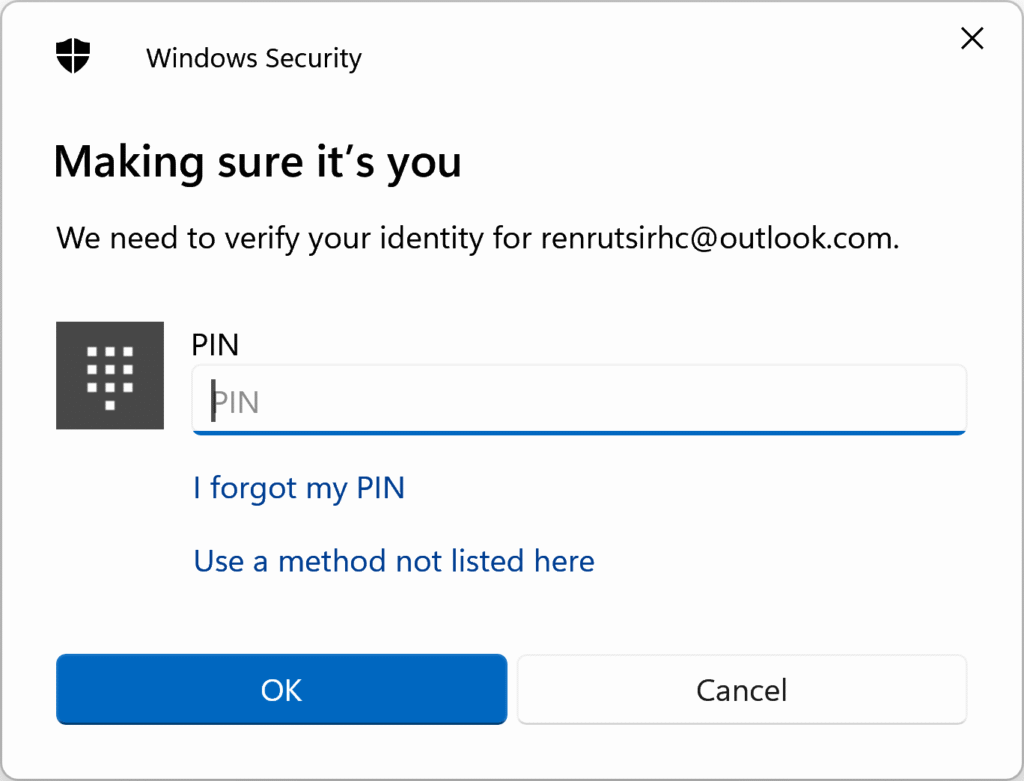
- Press Sign in and follow the prompts to sign in with your personal Microsoft account. NB. If a PIN is requested, this is the PIN that you use to log in to Windows.
- Once you are signed in to the Microsoft Store app, search for “Orchestra Librarian’s Toolkit” and navigate to its store page by clicking on the search result for OLTK.
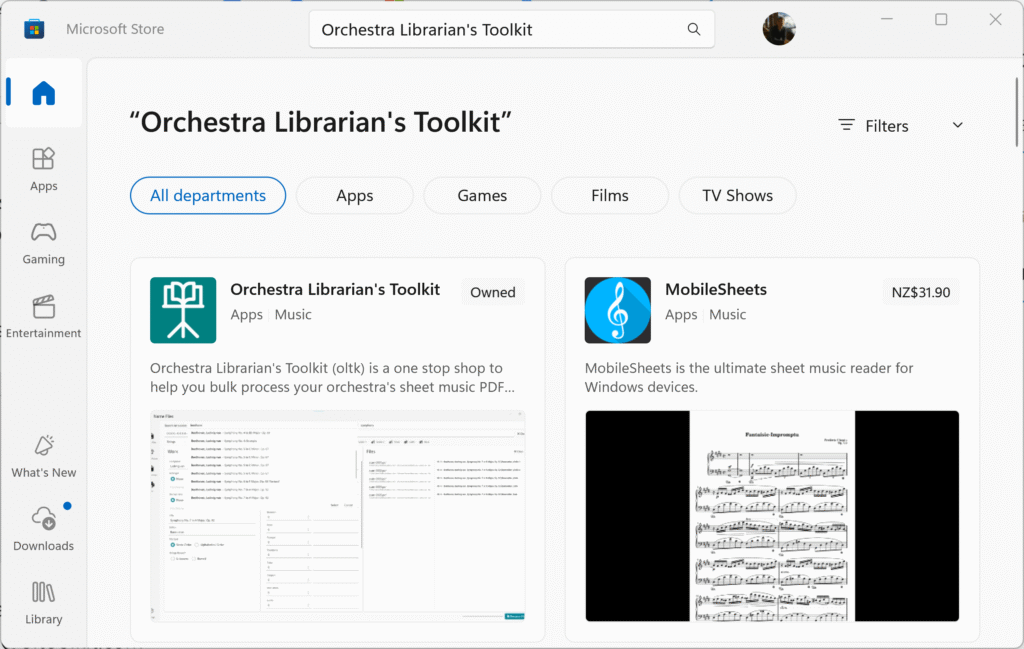
- You should see the following screen.
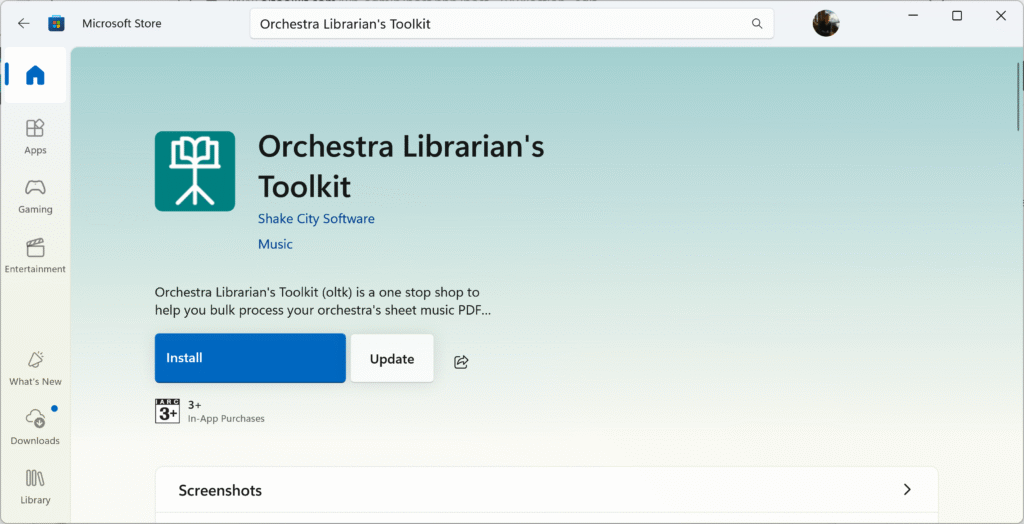
- Press the install button.
- Once installed, you can launch the OLTK from the Store, the Start menu, or create shortcuts on the desktop or taskbar like any other Windows application.
- Open Orchestra Librarian’s Toolkit.
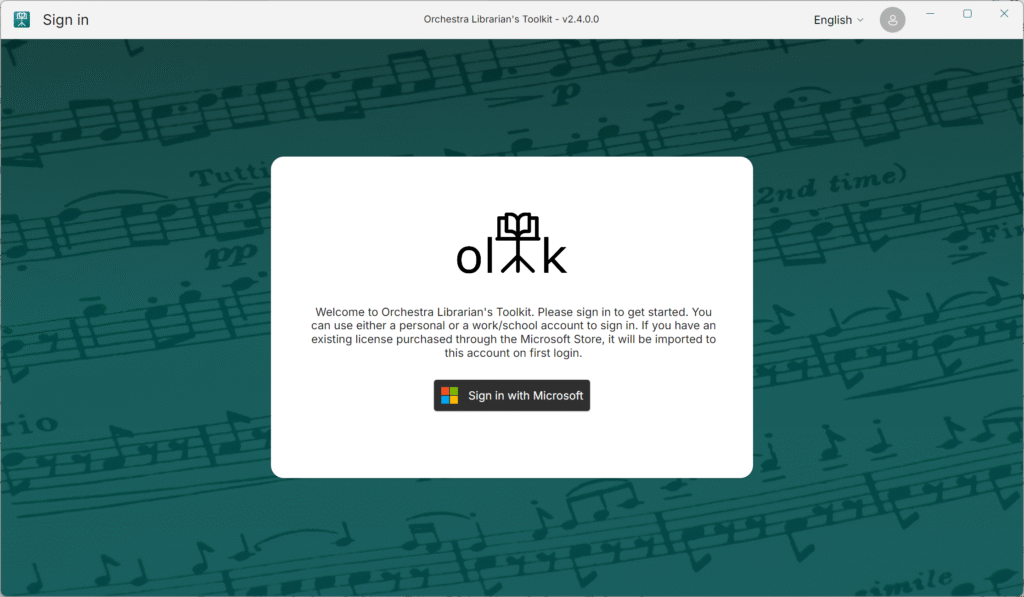
- You will see the login screen.
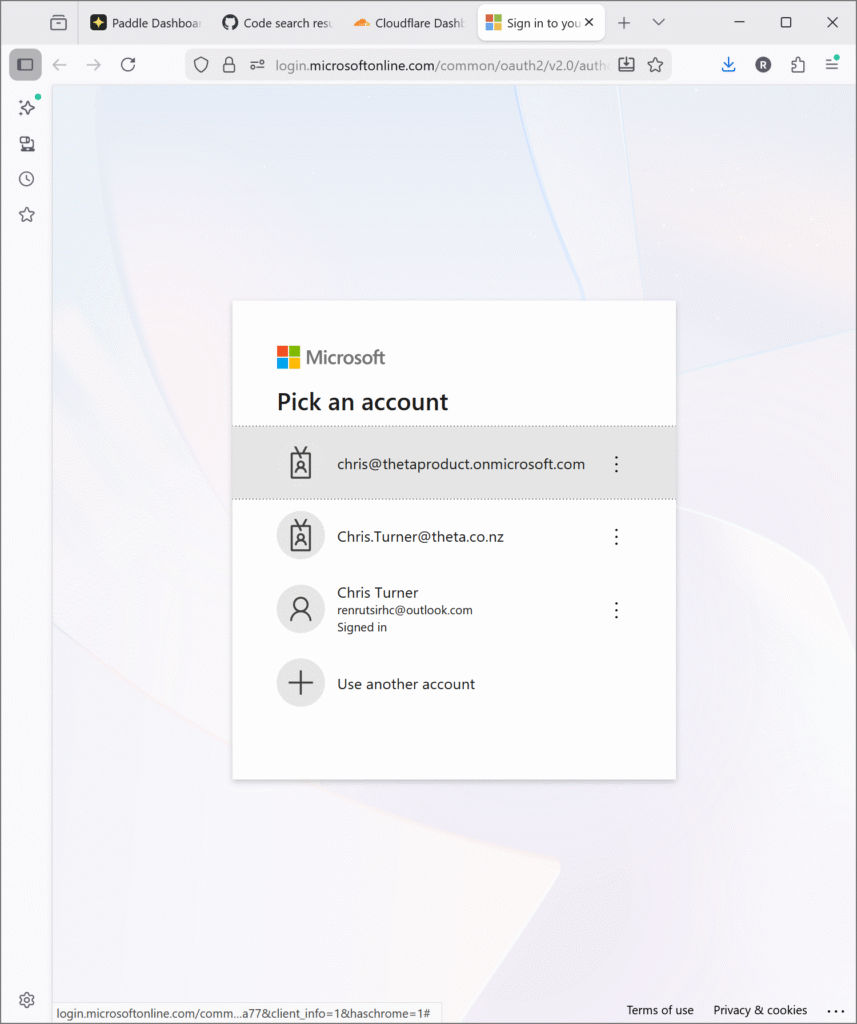
- Press sign in with Microsoft and follow the sign in flow. You can use any Microsoft account for this – personal, work or school.
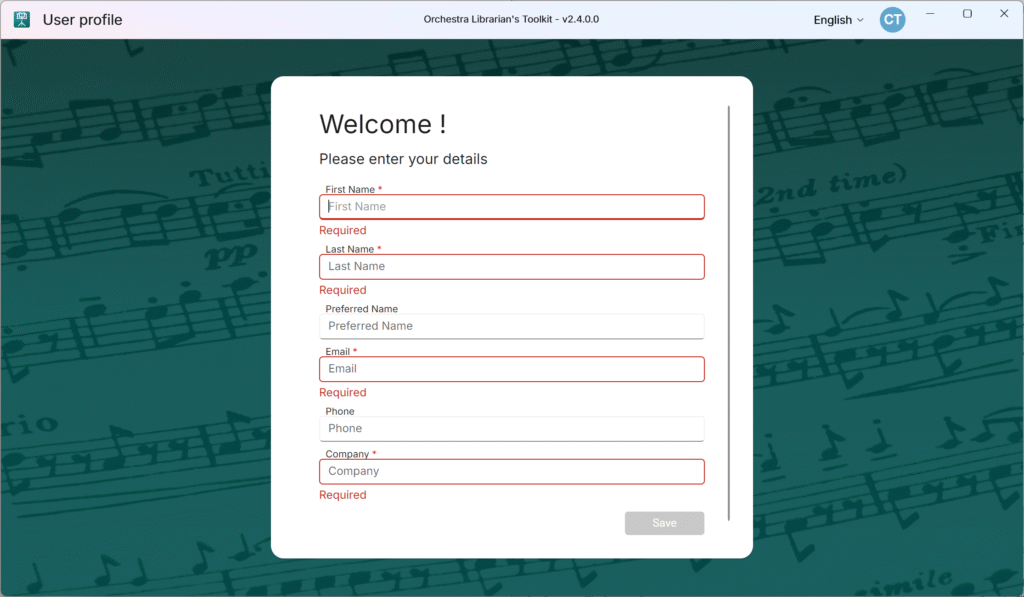
- Once signed in, you will be asked to fill in some details.
- Fill in your details and press Save
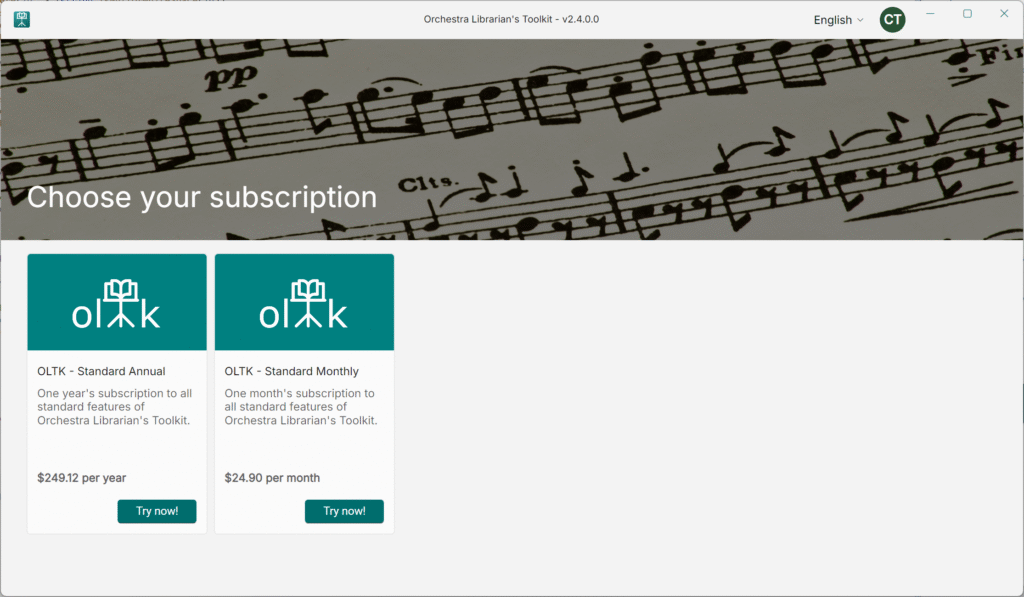
- Next you will see the subscriptions screen.
- Choose the subscription you would like to use and press Try Now!
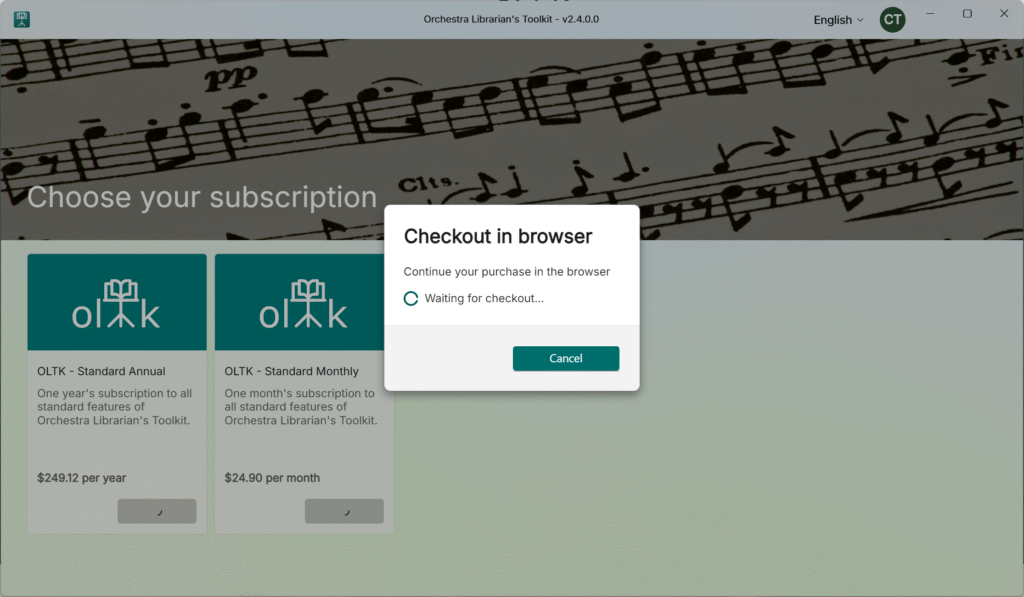
- The app will open a checkout in your web browser.
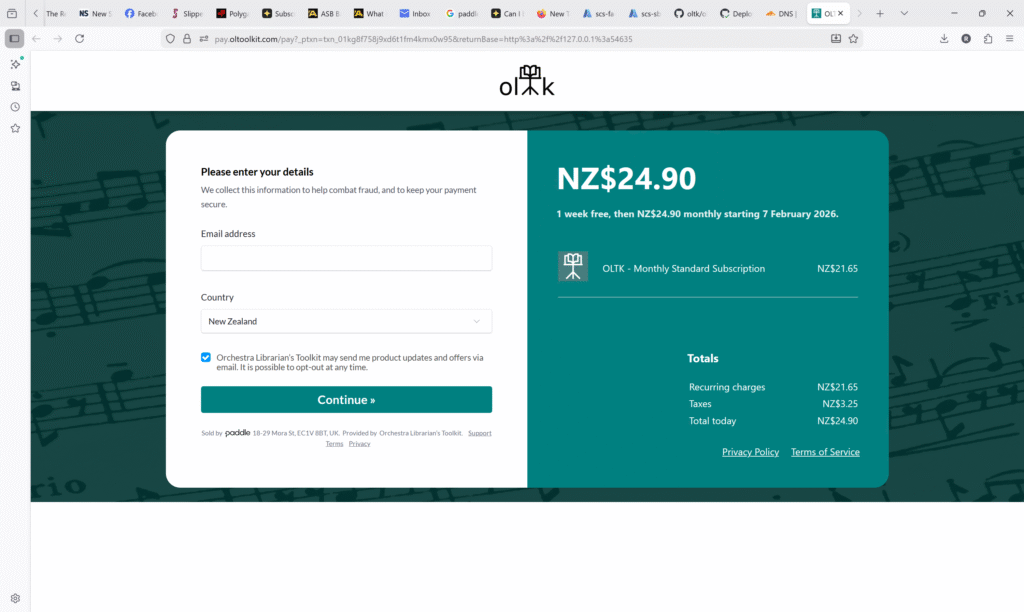
- Fill in your billing email and country and press Continue.
- You can choose to pay with a Credit/Debit card, Paypal, Google Pay (Chrome browser only) or Apple Pay.
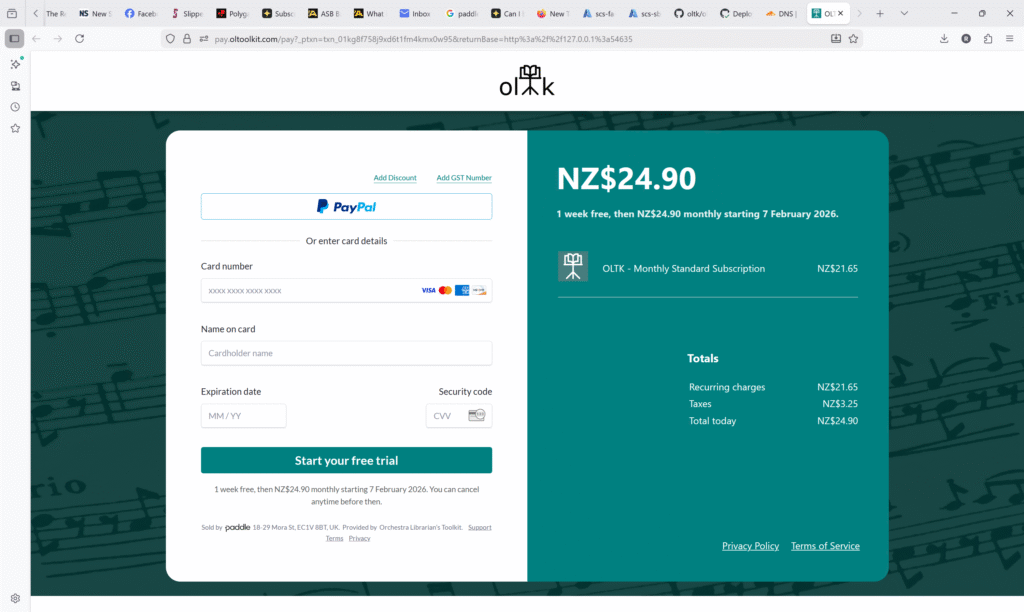
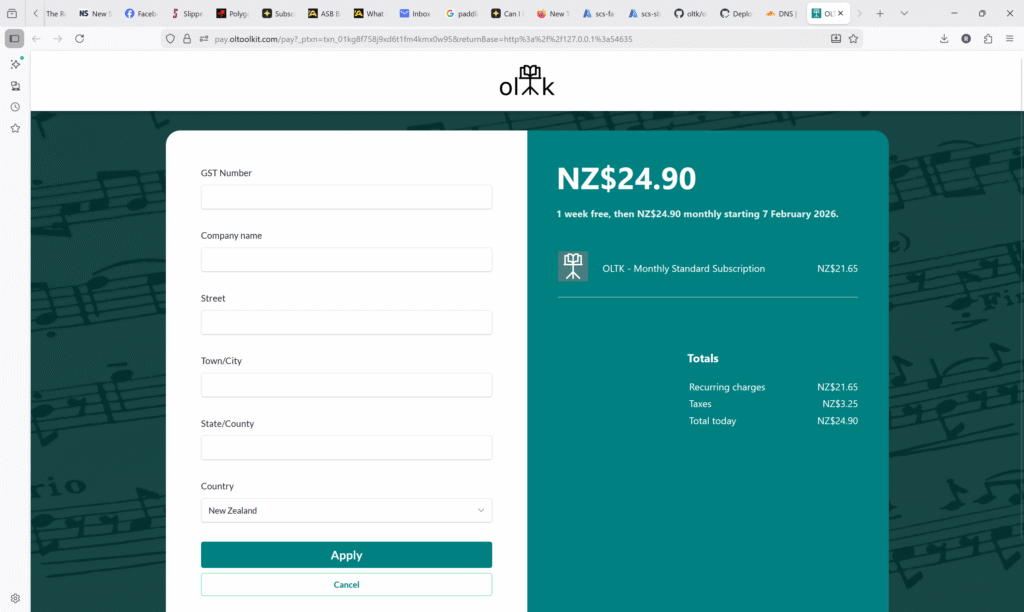
- If you need your invoice to include company details, Press Add GST Number (In some countries, this may say Add VAT Number or similar).
- Fill in your company’s details and press Apply.
- Once you have paid successfully, you will see the following screen.
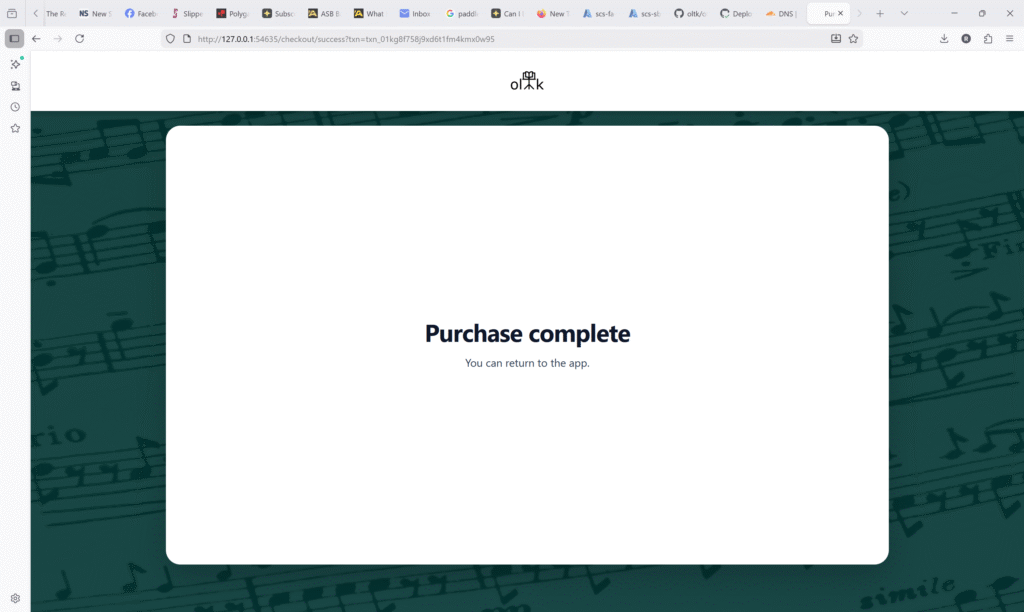
- You can now return to the app.
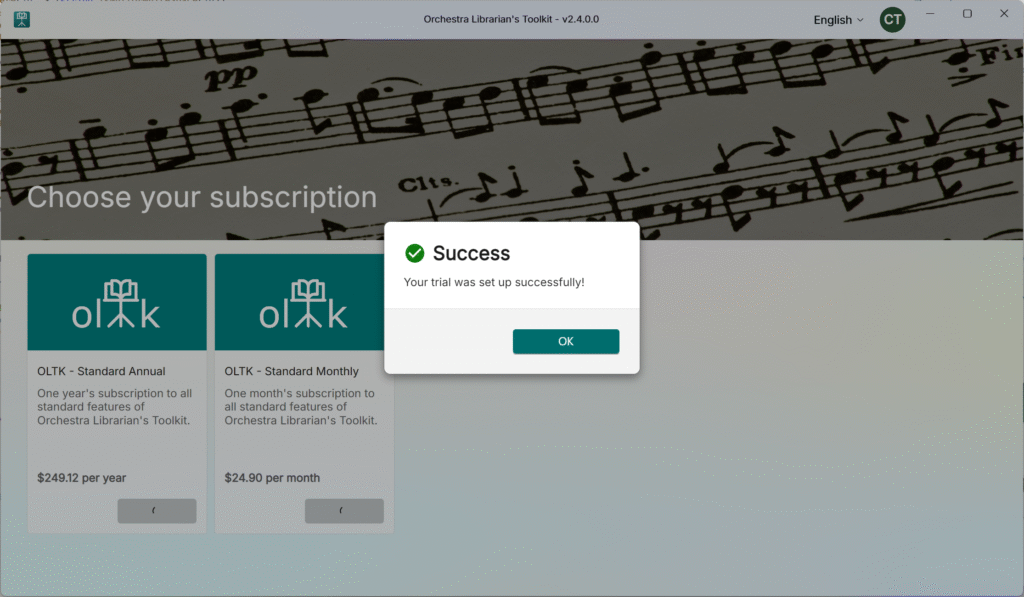
- Press OK
- You will be navigated to the OLTK home screen.