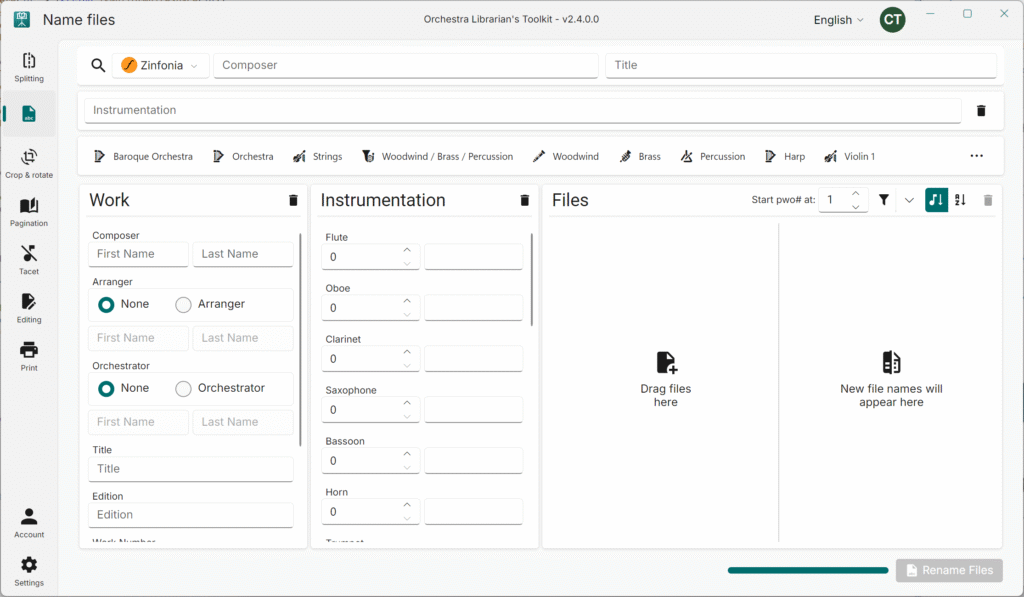
Once installed, you can launch the OLTK from the Microsoft Store app (if you installed via the Microsoft Store), the Start menu, or create shortcuts on the desktop or taskbar like any other Windows application.
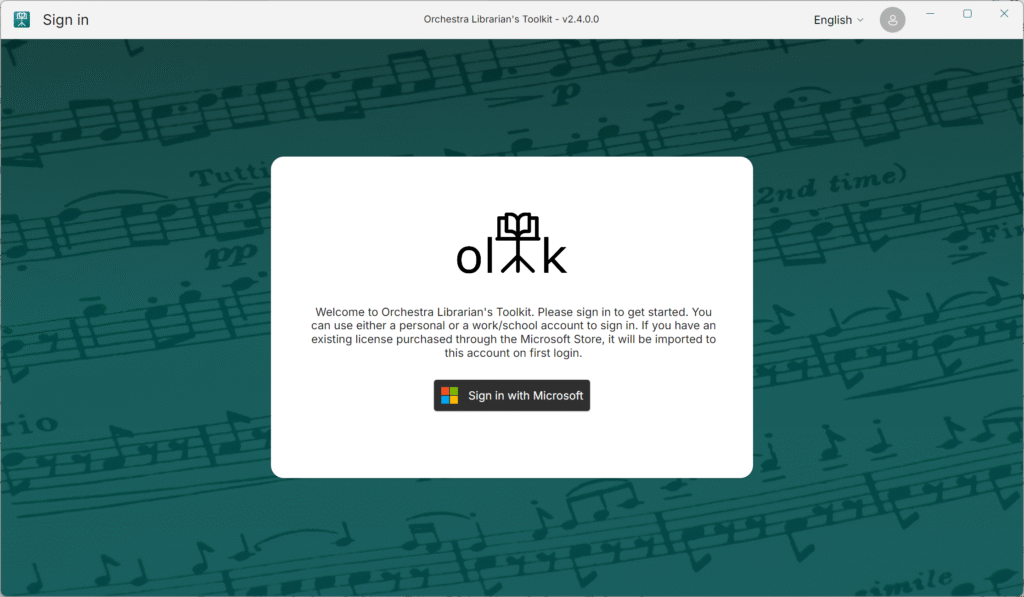
Open Orchestra Librarian’s Toolkit.
You will see the login screen.
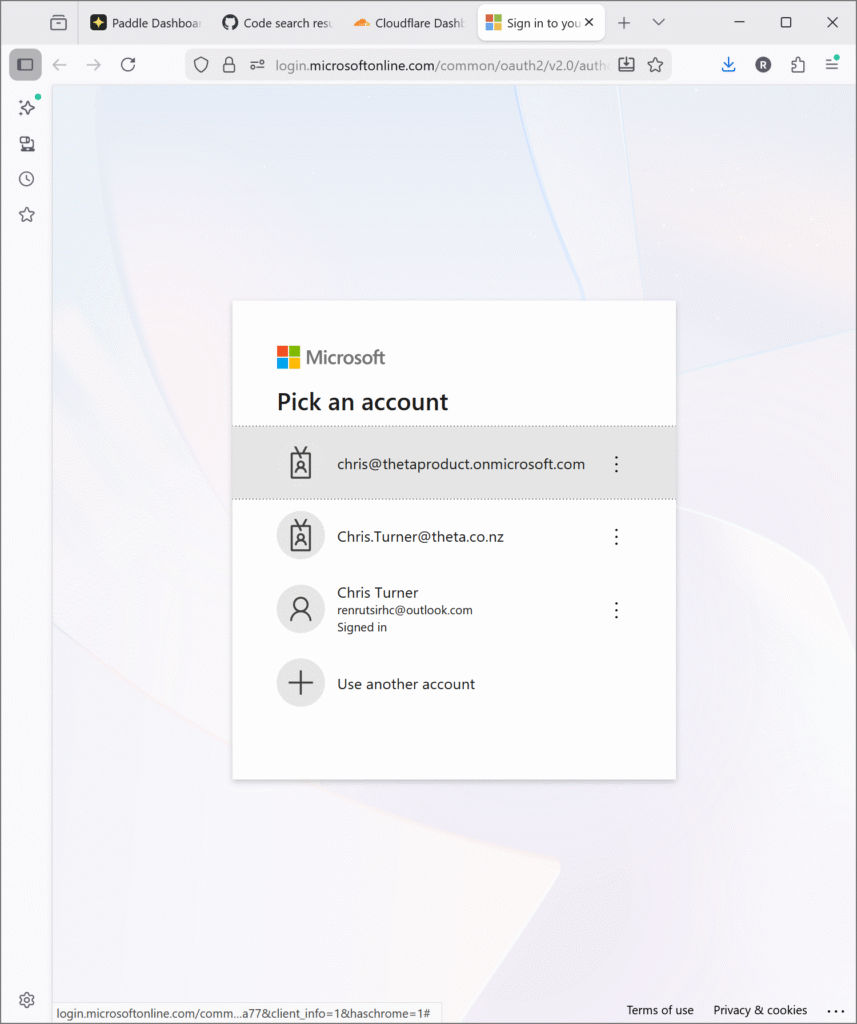
Press sign in with Microsoft and follow the sign in flow. You can use any Microsoft account for this – personal, work or school.
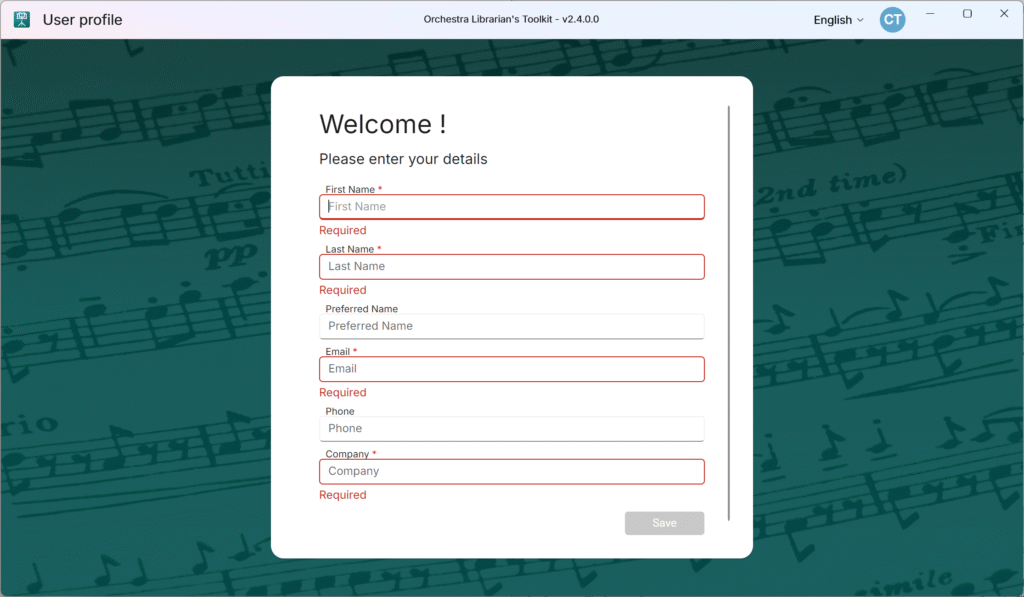
Once signed in, you will be asked to fill in some details.
Fill in your details and press Save
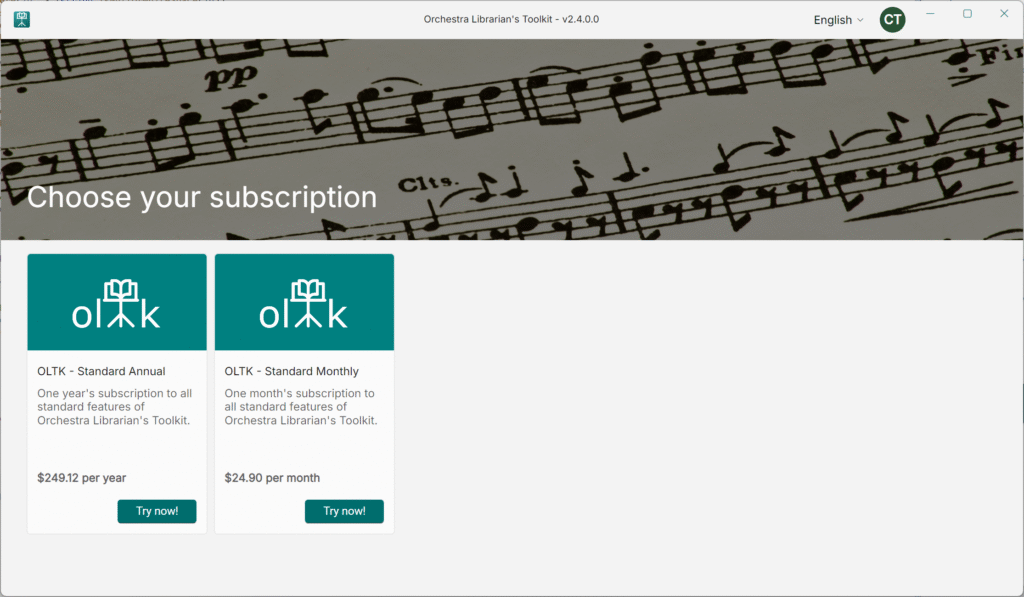
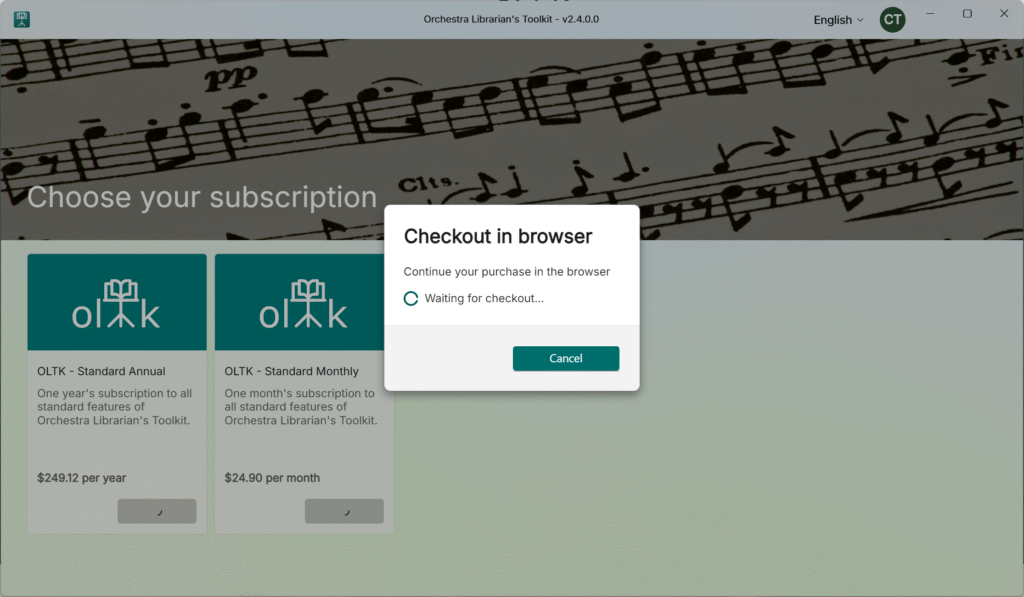
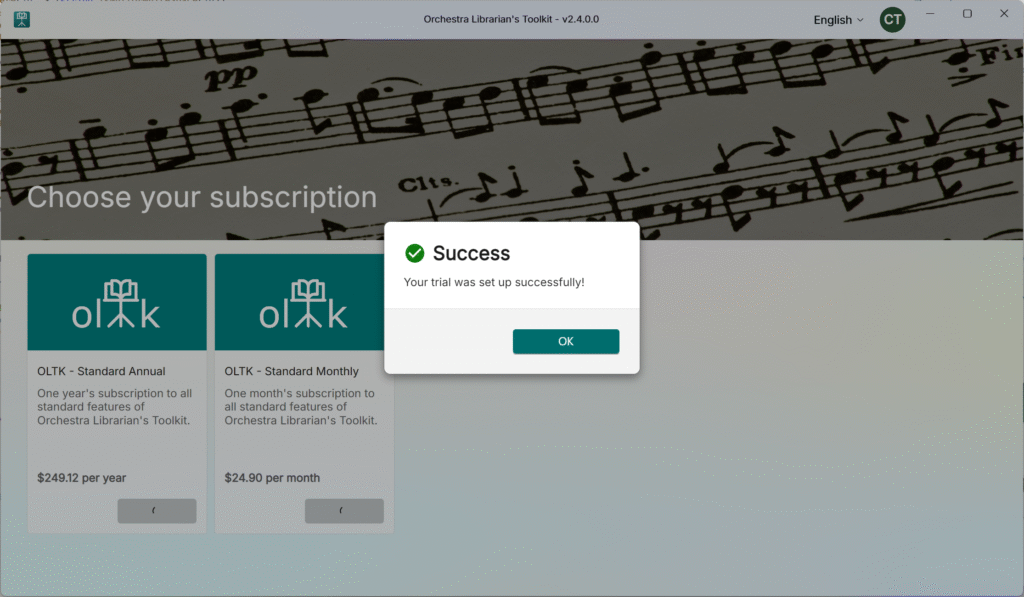
Next you will see the subscriptions screen.
Choose the subscription you would like to use and press Try Now!
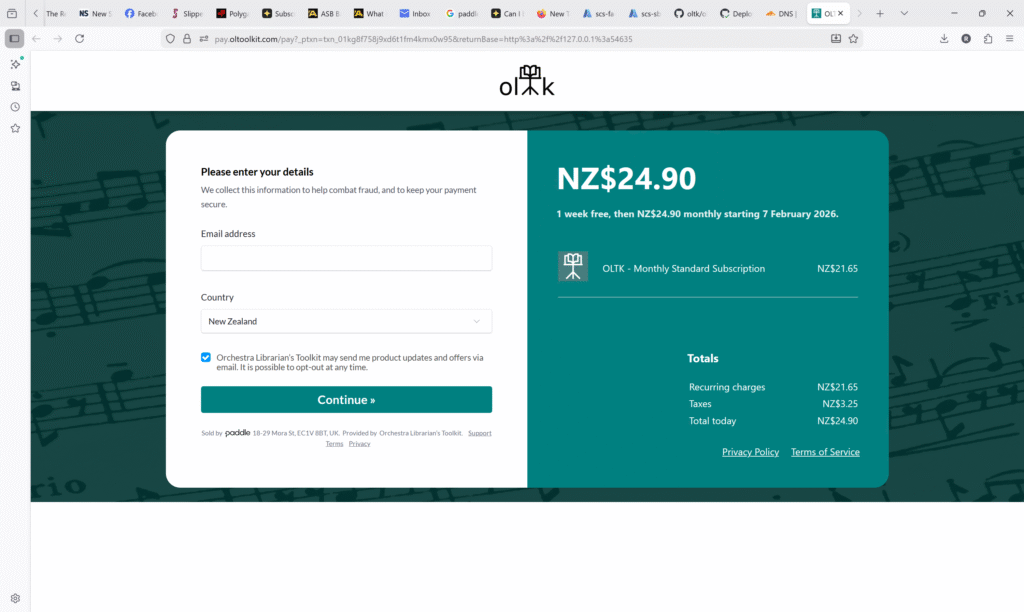
The app will open a checkout in your web browser.
Fill in your billing email and country and press Continue.
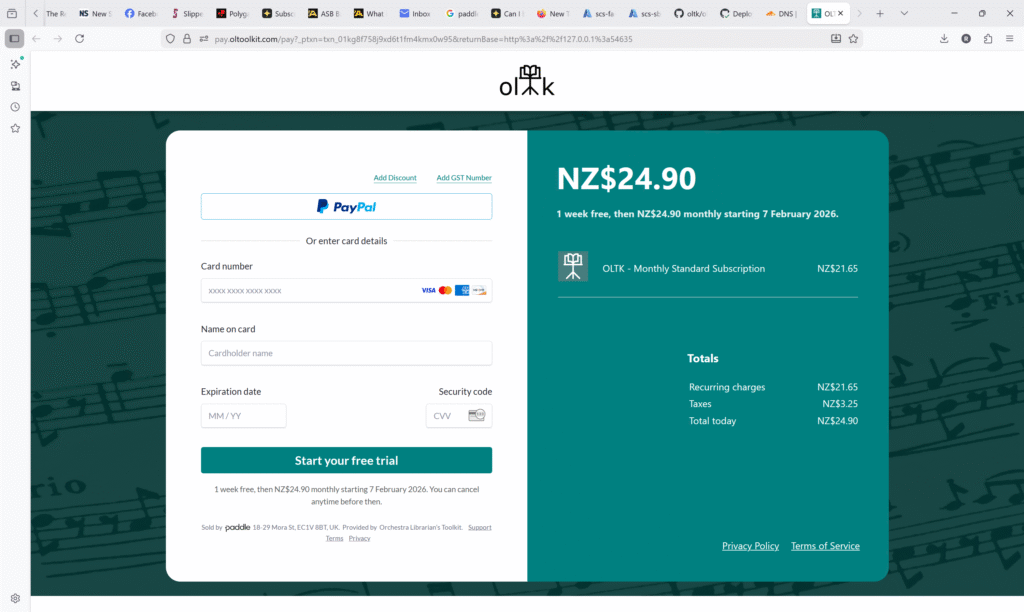
You can choose to pay with a Credit/Debit card, Paypal, Google Pay (Chrome browser only) or Apple Pay.
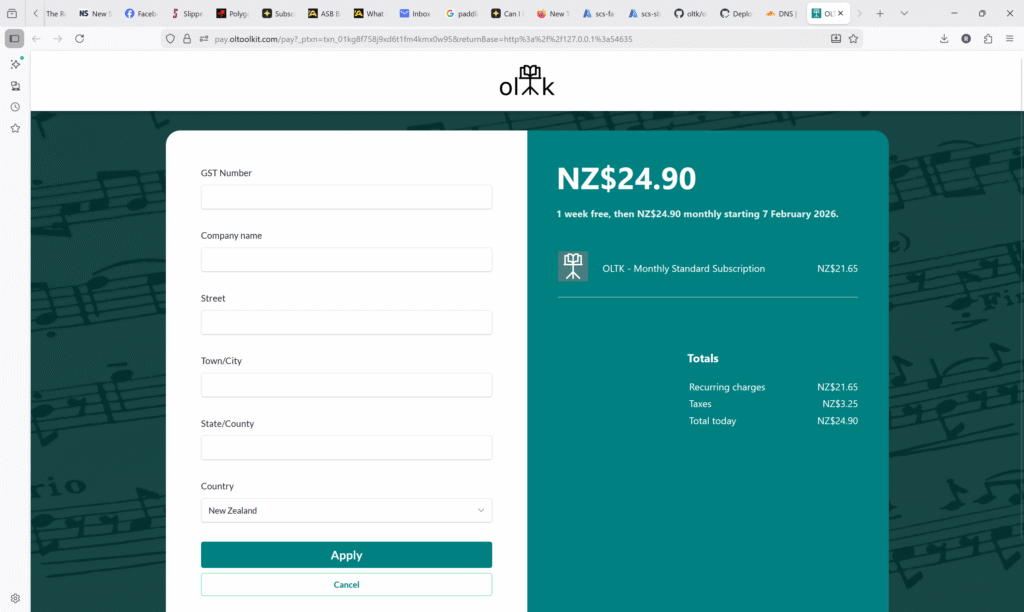
If you need your invoice to include company details, Press Add GST Number (In some countries, this may say Add VAT Number or similar).
Fill in your company’s details and press Apply.
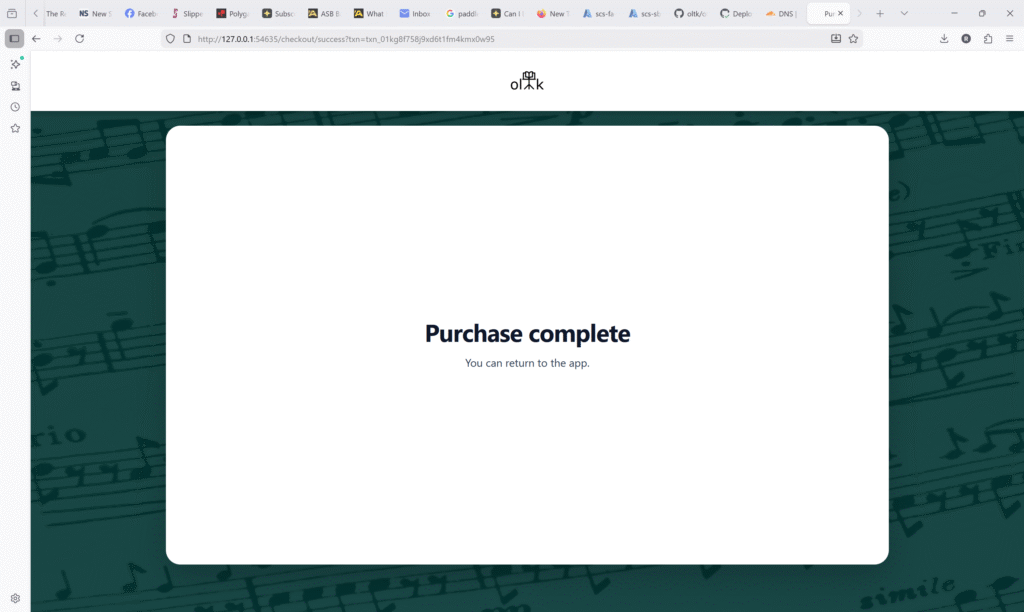
Once you have paid successfully, you will see the following screen.