By default, OLTK sends your pages to the printer one at a time, and the printer driver arranges them into a booklet. Most printers handle this well, but some drivers don’t: pages come out the wrong size or in the wrong place, or the print fails with an error.
In those cases, let OLTK arrange the booklet itself. OLTK places two pages side by side on each sheet in booklet order, and the printer just prints the sheets double-sided, exactly as it receives them.
This guide uses a Ricoh printer (the RICOH MP C6503 PCL 6 driver) and US paper sizes: Letter (8.5″ x 11″) pages printed on Tabloid (11″ x 17″) sheets. The steps are the same for any printer or paper size, though your driver’s settings may be named a little differently.
Before you start
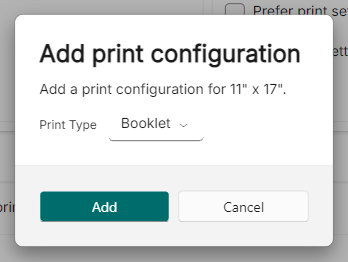
You need a Booklet print configuration for the paper size you print on. The paper size is the sheet (11″ x 17″), not the folded page (8.5″ x 11″). If you don’t have one yet:
- Navigate to Settings > Printers
- In the Print Configurations card, find 11″ x 17″ and press its + button
- Choose Booklet as the print type, then press Add
Step 1: Set OLTK to handle page layout
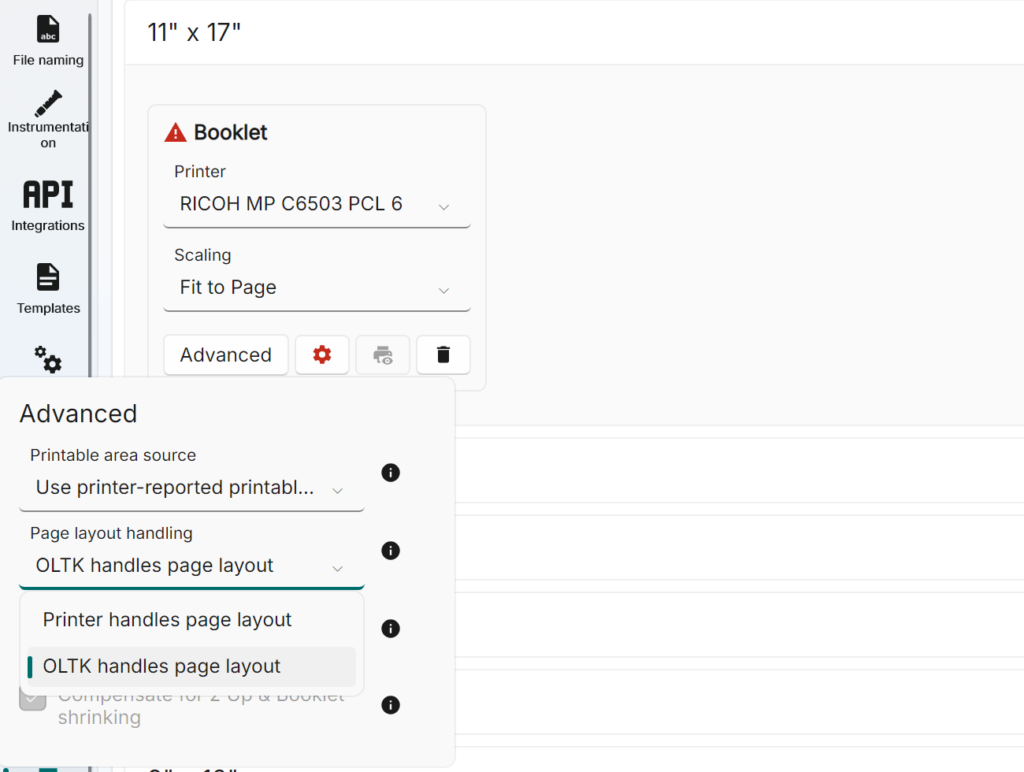
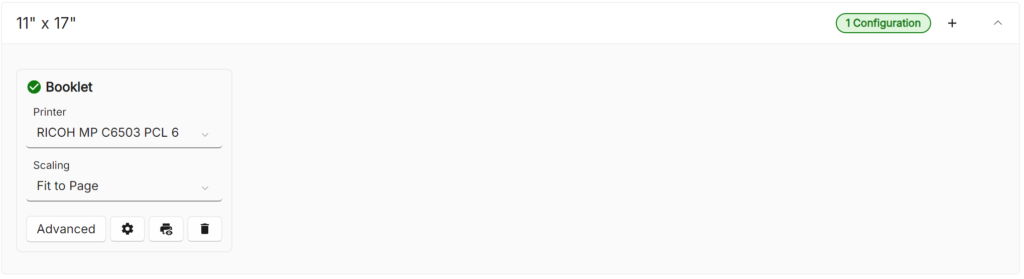
- In the 11″ x 17″ paper size, find the Booklet configuration and choose your printer
- Press Advanced
- Set Page layout handling to OLTK handles page layout
- Leave Printable area source set to Use printer-reported printable area
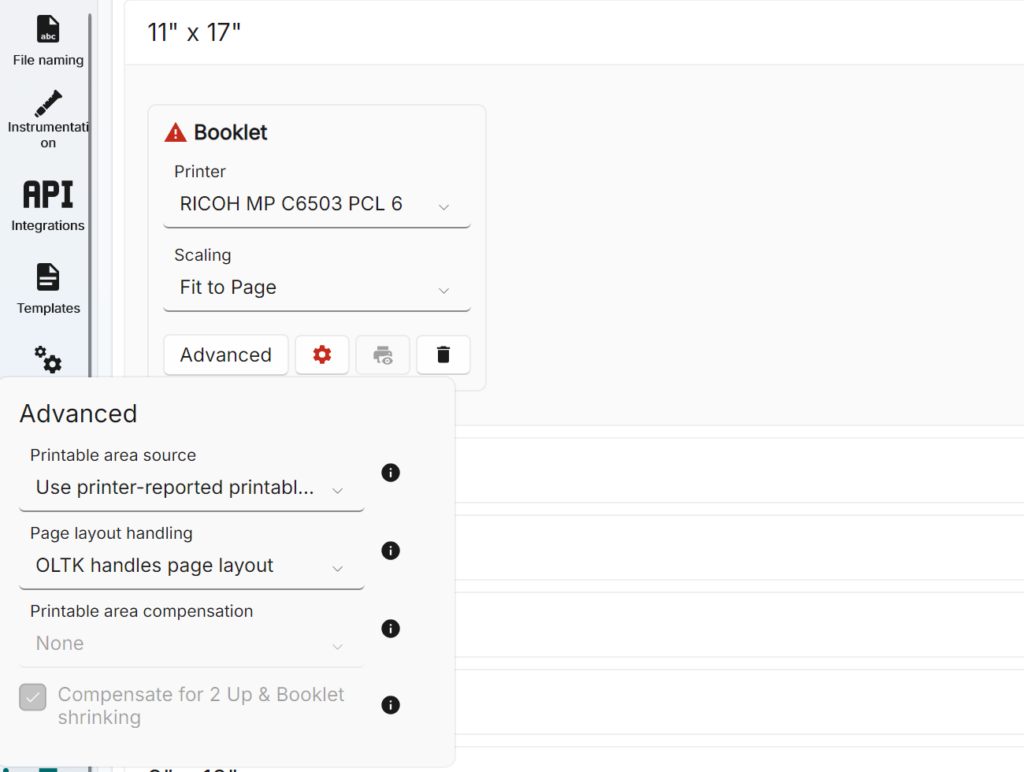
When OLTK handles page layout, Printable area compensation and Compensate for 2 Up & Booklet shrinking are greyed out. They only apply when the printer handles the layout.
Step 2: Set up the printer driver
Now set the printer driver to print the sheets double-sided, and to leave the layout alone.
- In the same Booklet configuration, press the cogwheel to open the printer’s driver settings
- On the Ricoh driver’s Frequently Used Settings tab, set:
- Document Size – 11″ x 17″ (the sheet you print on)
- Orientation – Landscape
- Layout – Off
- 2 sided – Short Edge Bind (Open to Top/Left)
- Booklet – Off
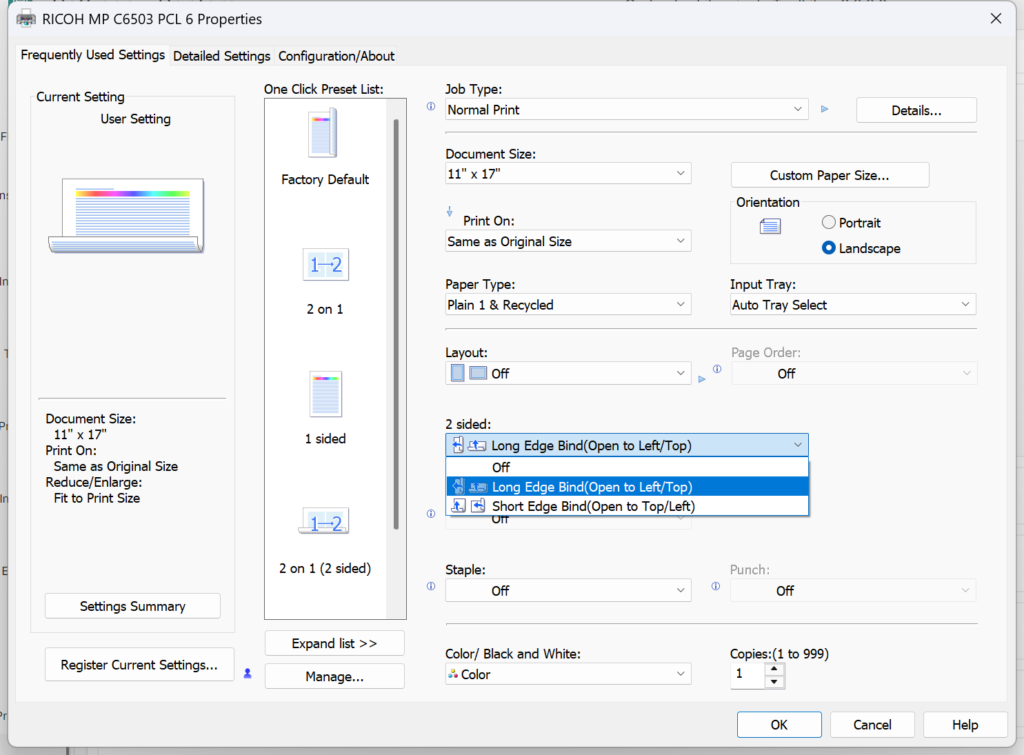
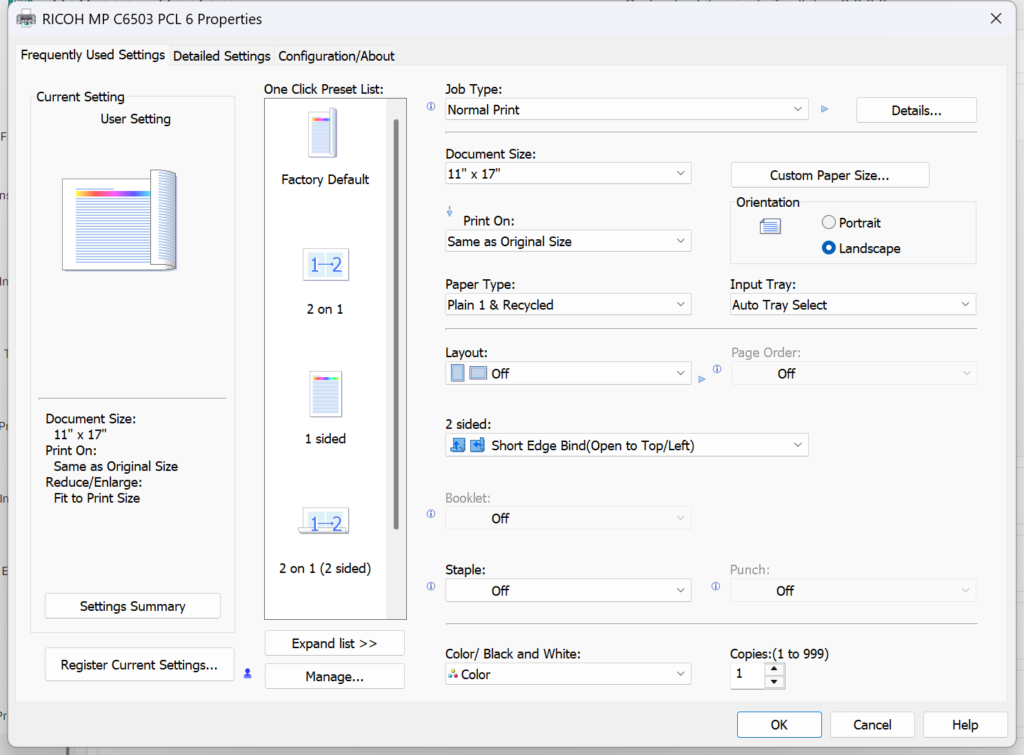
NB – leaving Layout and Booklet off is the most important part. If the driver also makes a booklet, the pages are arranged twice and come out tiny or in the wrong order.
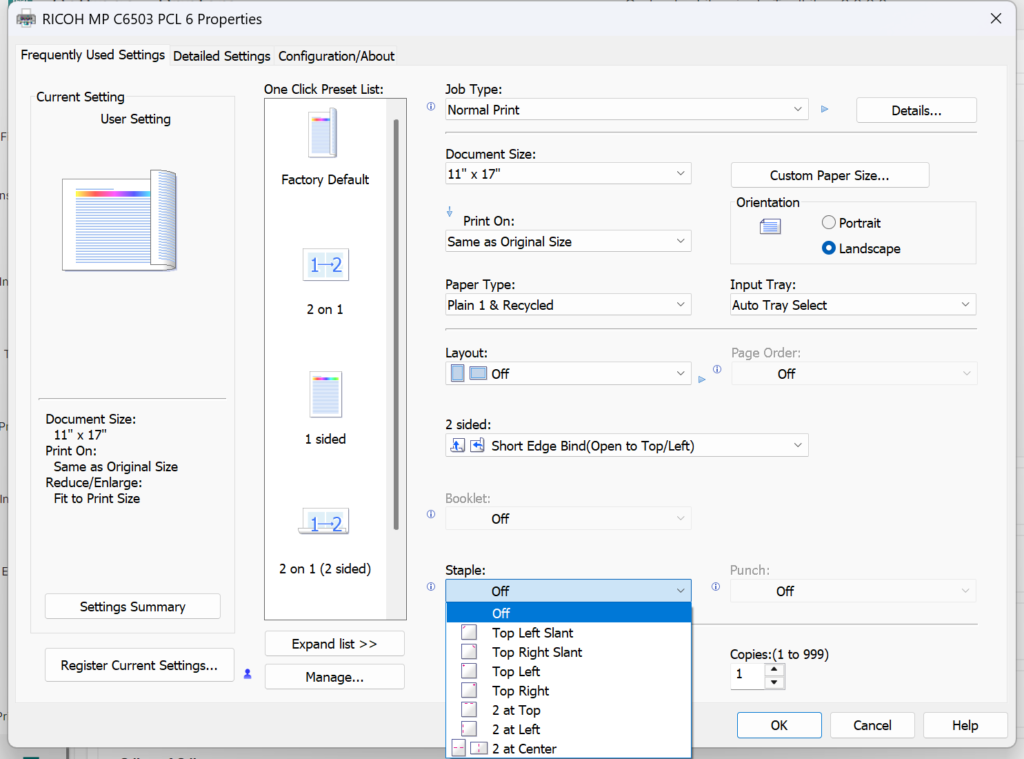
- If you want the booklets stapled down the fold, set Staple to 2 at Center. Finishing options like this don’t change the page arrangement.
- Press OK to save the driver settings
Until the driver has been set up, the configuration shows a red warning. Once it’s set up, it shows a green tick and the test print button becomes available.
Step 3: Print a test
- Use the Test print button (printer with eye, next to the cogwheel) to test the configuration
- Fold the printed sheets in half and check that the pages are in order, the back of each sheet is the right way up, and the pages are full size
- If the back of each sheet is upside down, change 2 sided in the driver to Long Edge Bind (Open to Left/Top) and test again
- Press Save
Troubleshooting
- The pages are tiny, or four to a sheet – the driver’s Layout or Booklet option is still on. Turn them off (Step 2).
- The back of each sheet is upside down – change the driver’s 2 sided setting to the other binding edge.
- Printing on a custom paper size with a Ricoh – see Ricoh printers with custom paper size.
- Still having trouble? Contact OLTK support, and include your printer model and the paper size you’re printing on.